
(English)
Quick Answer: RIP (Raster Image Processor) software sits between your design file and your DTF printer, converting RGB artwork into CMYK-plus-white ink instructions, managing the white ink underbase, ink limits, and print queue. An ICC color profile tells the RIP exactly how your specific printer, ink, film, and powder combination reproduces color — without the correct profile, prints commonly come out washed out, oversaturated, or with an unexpected color cast, even when the design file looks perfect on screen.
Most conversations about DTF quality focus on the printer, the ink, or the powder — but there's a step in between that determines whether all of that hardware actually produces accurate color: RIP software and color management. Get this step wrong, and even the best printer in the world will output dull, inconsistent, or off-color prints. This guide breaks down what RIP software actually does, why DTF color management is more complex than regular printing, and how to set it up correctly.
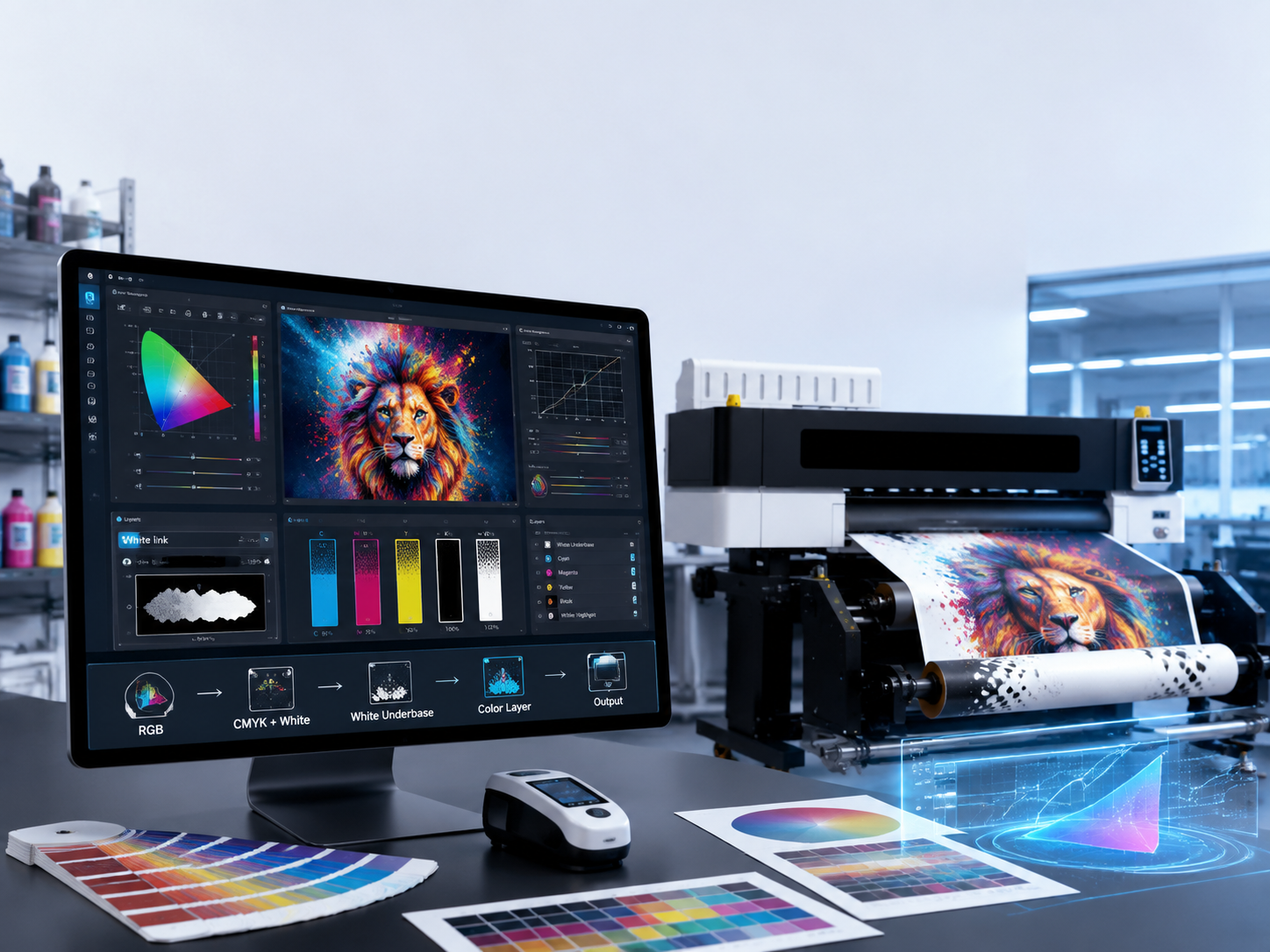
RIP stands for Raster Image Processor. In a DTF printing workflow, it's the software layer that takes your design file and translates it into the exact instructions your printer's nozzles need — which ink channels fire, how much white ink underbase to lay down, and in what order the layers print. Without RIP software managing this translation, a printer has no way to know how to handle the white ink layer that makes DTF transfers work on dark and colored fabrics.
An ICC (International Color Consortium) profile is a data file that describes exactly how a specific printer, ink, film, and powder combination reproduces color. Think of it as a translator that keeps your printer, ink, and design software all "speaking the same color language." Using the wrong profile — or a generic one not calibrated to your exact setup — is one of the most common reasons DTF prints don't match what's shown on screen.
DTF color management has a variable that most other printing processes don't deal with: the white ink underbase. Because color ink sits on top of a white base layer rather than directly on the substrate, the density and edge accuracy of that white layer directly affects how vibrant or washed-out the colors on top appear. An ICC profile built for your setup needs to account for your specific white underbase settings — a profile built for a different white ink density won't produce accurate results, even on the same printer.
A handful of RIP platforms dominate the DTF space, each with built-in ICC profile support and white ink handling: AcroRIP is widely used for its straightforward interface and broad DTF printer compatibility, Cadlink Digital Factory offers deeper color control for production environments, and platforms like Wasatch and Fiery serve higher-end, multi-printer commercial setups. Which one fits best usually depends on which RIP your specific printer model was designed to work with.
| RIP Software | Key Strength | Best For |
|---|---|---|
| AcroRIP | Simple interface, broad DTF printer compatibility | Small studios and beginners |
| Cadlink Digital Factory | Deeper color control and profile management | Growing production shops |
| Wasatch | Advanced multi-printer color consistency tools | Higher-end commercial operations |
| Fiery | Enterprise-grade color workflow management | Large multi-line production facilities |
| Step | What Happens |
|---|---|
| 1. Design | Artwork created in RGB color space |
| 2. Profile Assignment | Correct ICC profile applied for your printer/ink/film/powder combo |
| 3. RIP Processing | White ink underbase generated, color separated into ink channels |
| 4. Test Print | Color swatch printed and compared to calibrated screen/reference |
| 5. Production | Full run printed with locked, verified settings |
A great printer with the wrong ICC profile will still produce disappointing results, while a well-managed color workflow can make an entry-level setup punch above its weight. Taking the time to calibrate your monitor, use the correct profile for your exact ink/film/powder combination, and verify with test swatches before full production runs is one of the highest-leverage habits a DTF operation can build.
TODOjet's DTF printers ship with manufacturer-calibrated ICC profiles to get your color workflow started right, and our team can help you fine-tune settings as you scale your production. Contact us if you'd like guidance on RIP software setup or color management for your specific printer model.
Do I need RIP software for DTF printing?
Yes. RIP software is what translates your design file into printer instructions, manages the white ink underbase, and applies color profiles — a DTF printer can't produce accurate output without it.
What is an ICC profile used for in DTF printing?
An ICC profile tells your RIP software exactly how your specific printer, ink, film, and powder combination reproduces color, ensuring what you see on screen matches what prints.
Why do my DTF prints look different from my screen?
This is usually caused by an uncalibrated monitor, a missing or mismatched ICC profile, or color management settings conflicting between your design software and RIP software.
Can I use a generic ICC profile instead of a custom one?
A manufacturer-provided generic profile is a reasonable starting point if you're using the default ink, film, and powder combination — but if you've changed any of those, a custom profile built for your exact setup will give more accurate results.
Which RIP software is best for beginners?
AcroRIP is commonly recommended for beginners due to its simpler interface and wide compatibility with DTF printers, though the right choice ultimately depends on what your specific printer supports.
How often should I recalibrate my monitor for DTF color work?
Every few months is a common recommendation, since monitors drift out of calibration over time — inconsistent room lighting can also affect how accurately you judge color on screen.
Does changing my DTF film or powder brand affect color accuracy?
Yes. ICC profiles are built around a specific ink/film/powder combination, so switching brands can shift color output even if your printer and ink stay the same — re-testing or reprofiling is recommended after any consumable change.
 WhatsApp me


